Jumat, 05 Agustus 2011

Give your templates a refresh in the new document editor

We continue to add new features like pagination and discussions to the new document editor, and we want to make sure you always have access to all of the latest functionality -- whether you’re creating a new doc from scratch or using a template from the gallery. As part of this effort, we’re removing Google Docs templates created in the old document editor from the Google Docs template gallery.

Starting on September 30th, old style templates will remain accessible to their owners and to anyone who the template has been shared with, but they will no longer be visible in the public gallery. This will only apply to the public Google Docs template gallery; templates created in Google Apps domains will not be affected by this change.

You can ensure your templates remain in the gallery by converting them to the new document editor. Just follow these simple steps:
  1. Open the document from your documents list
  2. Click the Preview link at the top of the document to see what it looks like in the new editor
  3. From inside the preview window, click the Update this document link
When old style templates are removed from the gallery on September 30th, the template owners will still be able to restore the templates to the gallery by upgrading them to the new editor.

By making this change, we hope to bring the best possible experience to more documents.

Kamis, 04 Agustus 2011

Try out a new look and keyboard shortcuts for your documents list

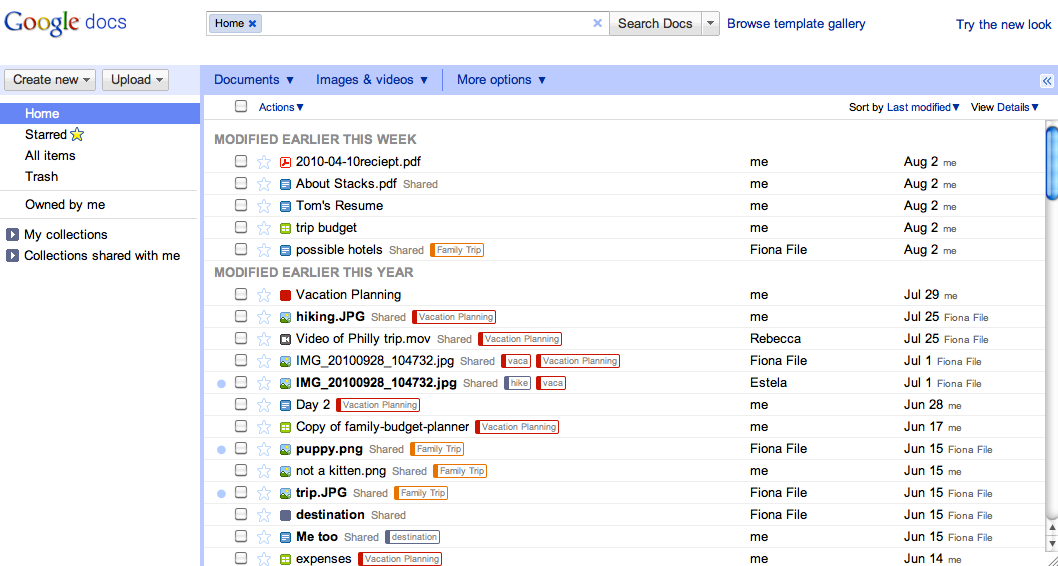
As part of our effort to provide an improved and consistent web experience across Google products, we’d like to invite you to try out a new look for the documents list that's rolling out to users over the next few days. If it's available to you, you'll be able to preview the new look by clicking on Try the new look under the gear icon in the upper right. You’ll be able to return to the classic look using the same menu.

Classic look

New look

While using the new interface, you may want to see more of the items in your documents list on the screen at one time. To do this, click on the gear icon in the upper right and go to Documents settings. Under Row height, you’ll be able to select the option to use a denser view.

As part of this new look, we’ve also added keyboard shortcuts to help you easily navigate your documents list without a mouse. For example, when selecting a document, use the ⇓ (down arrow) to move down the list and the ⇑(up arrow) to move back up. Once you find the item you're looking for, type a to open the Actions menu. Then, use the ⇑ and ⇓ arrow keys to navigate the Actions menu, and hit to select an action.

The Create new shortcuts are also convenient for creating new docs while you’re working. Simply hit Shift + T to create a new text document, Shift + S to create a spreadsheet, or Shift + C to create a new collection.

Can't remember all those shortcuts? Just remember the question mark. Type ? when you’re not in the search bar, and a window will appear showing all available shortcuts.


These shortcuts will only be available if you’re using the new interface. Keep an eye out for more changes to the new interface as it evolves, and make sure to tell us what you think about the new design in this brief feedback form so we can continue to improve your experience.

Rabu, 03 Agustus 2011

Use new Google spreadsheets charts in your documents and drawings

Today, we’re releasing a few new types of charts, plus a feature that allows you to copy your charts from spreadsheets into documents and drawings. Sound good? Bet your bar chart it does. Let’s show you how it works.

Start by creating a chart. Then, select the chart by clicking on it once, which will display the chart’s name. Click the chart name or the arrow next to it to open the dropdown menu of chart actions. From the menu, select Copy chart.


Next, open the document or drawing where you’d like to insert the chart and position the cursor where you’d like the chart to go. Use the Web Clipboard dropdown menu, as shown below, to locate your copied chart.


As you hover the mouse over the menu item for the chart, a thumbnail will be displayed. Clicking on the chart item will paste it into the document as an image, which can then be resized, aligned, etc. Here’s an example of a chart pasted into a document:


Note that the chart snapshots are just that -- they are images of the chart at the time of copying and therefore do not update as the spreadsheet data changes. If you need to update a chart, just copy and paste it again.

The name of the chart shown in the Web Clipboard menu is the same as the chart’s name in the spreadsheet, which you can easily change from the default name, “Chart 1.” To rename a chart, select Edit chart from the chart’s action menu, and enter a new name on the Customize tab. This is particularly handy when working with charts from multiple spreadsheets.

We’ve also introduced a few new types of charts to Google spreadsheets. We now support candlestick charts and combo charts (which allow you to show columns, lines, and area lines all on the same graph). You can also use the GeoMap chart to insert a data-driven map of the world, a continent, or a country into your spreadsheet. Our TreeMap chart, meanwhile, should be exciting for the statisticians and logicians among you.

We hope this makes creating great documents easy as pie (charts, of course).

Senin, 01 Agustus 2011

This week in Docs: Copying drawings and better right-to-left table support

This week in Docs, we have a couple of new features that we hope make your life easier (and more visual). Read on.

Copying and pasting drawings across docs
Starting today, we’re adding support for the web clipboard to the embedded drawing editor so that you can work with drawings within documents, spreadsheets, and presentations. This means that you can now copy shapes from one document and paste them into existing drawings in another doc. You can also use the web clipboard to move a drawing from a document into the standalone drawing editor.


To try this out, open a new document and go to Insert > Drawing to create a drawing in the embedded drawing editor. Click the web clipboard icon and Copy shapes to web clipboard.


Open another doc that you want to paste the drawing into. Click the web clipboard icon and hover to preview the available items -- then, click to paste when you’ve located the drawing you’d like to use.

Better support for right-to-left tables
We’ve also made an improvement to tables that will be useful for Hebrew and Arabic users. If you’ve enabled right-to-left controls from your docs list settings, you’ll now have an option to create tables that are visually right-to-left. This means that the first cell in the table will be in the upper right and that tabbing through the table will move you to the left and down. You can modify a table’s directionality from the table properties dialog.


We hope you enjoy these new features. As always, let us know what you think in the forums and stay tuned for more updates in the next This week in Docs blog post.

Rabu, 20 Juli 2011

This week in Docs and Sites: A spreadsheets shortcuts menu, PPTX support and more

This week, we’re introducing a number of enhancements to Google Docs and Sites: a spreadsheets shortcuts menu, support for PPTX conversion, a new RSS gadget, and improved mobile rendering for Sites.

Spreadsheets shortcuts
Although shortcuts have long been available in your Google spreadsheets, we've added a shortcuts menu to spreadsheets to make them easier to find -- saving you even more time. Hit Ctrl+/ (or Cmd+/ on a Mac) to pull up the list of shortcuts and learn new ways to sharpen your spreadsheet skills. Remember that shortcuts can vary depend on the operating system and browser you're using -- the example below is the menu you’d see if you were using a Chrome browser on a Mac.


Support for conversion of PPTX files to Google presentations
Starting today, you can convert PPTX files to Google presentations by either uploading the file from your desktop or converting the file from your documents list. Just follow the same simple steps as you normally would when converting files to Google Docs formats.

Better customization for your RSS Gadget in Sites
We’ve also added a new RSS gadget for Google Sites to our “Featured” gallery.


The new RSS gadget gives you complete control over the appearance of the gadget: You can customize any aspect of the feed, including font, color, size, number of items to display, and post length.

To set your gadget, go to Insert > More Gadgets > Featured, and look for RSS Feed.


Improved mobile rendering
After we released our initial version of Google Sites automatic mobile rendering, you enabled the option for over 50,000 sites, making it clear that you’re looking for a better way to easily publish content for mobile devices.

Based on what you’ve told us, we’re adding the additional behaviors to make automatic mobile rendering on Google Sites even better, including:
  • Images and header logos automatically scale in mobile mode
  • Gadgets and text boxes have widths that fit mobile devices
  • Pages with multi-column layouts stack columns vertically on mobile


BeforeAfter

Thanks for continuing to let us know what you think about our products -- these changes wouldn’t be possible without you.

Kamis, 14 Juli 2011

ZIP and RAR support now available in the Google Docs Viewer

Downloading files that you only need to preview can create unnecessary clutter on your computer. While you can already use the Google Docs Viewer to view over 15 different file types without downloading them, today we’ve added support for archive file types ZIP and RAR. Now, if someone sends you a ZIP or RAR file in Gmail, you’ll be able to view its contents from within your browser by clicking on View.


This will bring up a view that includes all of the files in the archive, the file types, and the size of those files.


When you hover over the list you can activate a menu by clicking Actions. You’ll be able to View items supported by Google Docs Viewer and Print (PDF) those that we offer PDF support. Save to Google Docs and Download appear for all files.


ZIP and RAR archives that are embedded inside other archives also work. For example, if you have a RAR file inside a ZIP file (like in our example above) you can just click on that file to access the embedded archive.

Go ahead and try the feature by viewing a ZIP file.

This feature extends to Google Docs for mobile, too. For each viewable file (including embedded ZIP or RAR archives) there is a link to view.


We hope this removes the need to download full archives when you only need to work on select items. We’re always adding more file types to the Google Docs Viewer -- let us know what file types you’d like to see support for next in the forums.

The Google Docs Help Center gets a makeover

As Google Docs has developed over the last five years, the Google Docs Help Center has also grown to help you learn how to use hundreds of Google Docs features. With new features and articles being added regularly, however, the help center became hard to navigate, making it difficult to find useful help articles. Today, we’re happy to announce an entirely new help center structure that we’ve worked on for the last few months.

The Google Docs Help Center used to be divided by each individual Google Docs editor. But we've since found that presenting help articles by your intent is more helpful. We hope that this will cut down the time it takes you to find the article you're looking for, make it much easier to find that content, and help you learn about the power of Google Docs.

Here’s a look at the new categories you’ll find on the help center homepage:

  • Get started: Information about documents, spreadsheets, and more for new Google Docs users.

  • Work in Google Docs: Home to all help articles on editing and formatting, including content about Google documents and spreadsheets.

  • Manage, upload, and export: All help articles that were previously categorized as "Documents List." Here, you'll find information about file management, uploading and exporting, and Google Cloud Connect.

  • Share, publish, and embed: Information about sharing and publishing all in one place, since sharing is exactly the same no matter which type of doc you're working in.

  • Accounts, abuse, and privacy: Home to help articles about your Google Account, Google Docs settings, reporting abuse, and privacy policies.

  • Mobile: All help articles that relate to working in Google Docs on a mobile device.

  • Template gallery: Information about how to navigate the template gallery, use and submit templates, and report inappropriate templates.

  • Fix a problem: Houses information about known issues and how to solve a problem.

In the coming weeks, look out for more design and layout changes that will make your help center experience even better. Combined with the new help center organization, we hope that these ongoing design changes will make your learning experience in the help center more enjoyable, efficient, and useful.