Selasa, 29 Juni 2010

New Search Operators in your Documents List

Have you ever tried looking for a document or spreadsheet from a particular time or from a certain person about a specific topic? Let’s say you’re a rocket scientist and you’re looking for the presentation about “Prototype rockets with lasers” that your manager sent you last year.

Normally, you’d just search for [rockets lasers prototypes]. But, lets face it, you’re a rocket scientist so you get lots of matching results; just about every document you have is about rockets or lasers.

You could narrow the search in the advanced search menu or you can use Search Operators and refine the search directly in the search box:
  • Quotes for exact phrase matching. Example: [ "match this phrase exactly" ]
  • OR to allow either one of several words. Example: [ "rockets" OR "shuttles" ]
  • Items without a certain word: [ rocket -man ] will return docs that mention rocket, but not rocket man.
  • Items you shared with, or had shared with you: [ from:ted@rocketsnlasers.com ] or [ to:ted@rocketsnlasers.com ]
  • Starred or Hidden items: [ is:starred ] or [ is:hidden ]
And we recently added a some new search operators:
  • Type of doc: [ type:{document, spreadsheet, presentation} ]
  • Items edited before (or after) a certain day: [ before:YYYY-MM-DD, after:YYYY-MM-DD ]
  • Items owned by Ted: [ owner:ted@rocketsnlasers.com ]
  • Items with “rocket” in the title: [ title:rocket ]; [ subject:rocket ] does the same thing
Now you, the rocket scientist, should be able to easily find your boss’ presentation by searching for [ rocket laser prototypes from:overhead@rocketsnlasers.com before:2010-01-01 type:presentation ].

Senin, 28 Juni 2010

Google Docs Viewer on Mobile Browsers

Cross posted on the Google Mobile Blog

Last week, we announced that the Google Docs viewer supports .doc and .docx attachments. Today we’re also releasing a mobile version of the Google Docs viewer for Android, iPhone and iPad to help you view PDFs, .ppt, .doc and .docx files you’ve uploaded to your documents list, without needing to download the file.


With our mobile viewer you can switch quickly between pages and pan/zoom within a page. On your iPhone and iPad, you can pinch to zoom in or out.

You can try it out by going to docs.google.com on your Android-powered device, iPad or iPhone and select any document in these formats that you've previously uploaded. Let us know what you think in the Mobile Help Forum.

Posted by: Mickey Kataria, Software Engineer

Kamis, 24 Juni 2010

View .doc attachments right in your browser

Cross posted on the Gmail blog

If you receive Microsoft® Word files as attachments in Gmail, you can now view them with a single click -- no need to download, save, and open files with a desktop application when all you want to do is have a peek. The Google Docs viewer that allows you to view .pdf, .ppt, and .tiff files in your browser now supports .doc and .docx formats too. Just click the "View" link at the bottom of a Gmail message and the viewer will take it from there.

If you decide you want to edit the file, clicking "Edit online" will open it in Google Docs, or you can download it to your desktop from there.

Tips & Tricks: Advanced Sorting Rules in Google spreadsheets

In April, we launched a new version of Google spreadsheets. One new feature that helps organize your data is advanced sorting rules.

Sorting a selection
With the new sorting capabilities, you can sort a small selection of cells without affecting the rest of your spreadsheet. In my triathlon spreadsheet, for example, I could sort only the selection about running while leaving the biking and swimming sections intact. First, I highlight the range of cells in my spreadsheet about running.
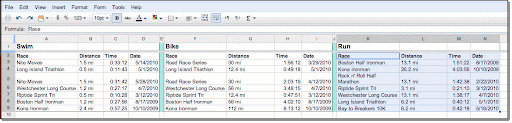

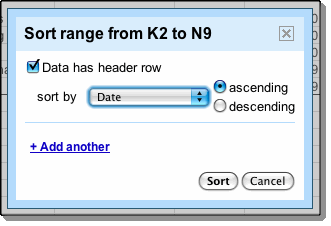
Then, I go to the Tools menu and select Sort. Now I can set a sorting rule. In this case, I'd like to sort my running races by date.

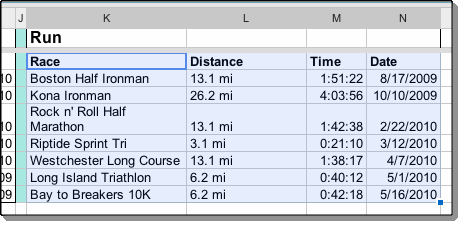
Last, I click the Sort button, and my running times are organized by date.

Setting multiple sorting rules
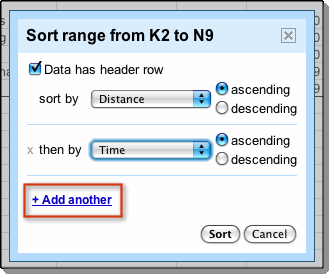
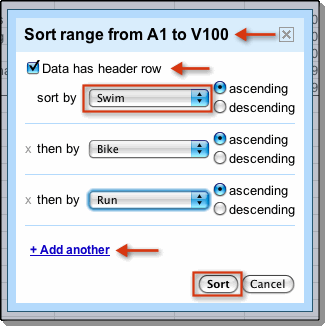
The new sorting feature also allows you to set more than one sorting rule for any given selection of cells. If you select just the data about running again, you can sort first by distance and then by time to more easily see your average time. Click +Add another to add additional sorting rules.

Sorting the entire sheet
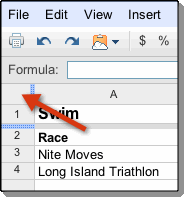
Alternatively, you can sort the entire sheet. Click the square in the top left corner of your spreadsheet to select all cells in your spreadsheet. Once you’ve selected all of the cells in your sheet, you can set your sorting rules in the same way as sorting a selection.

A detailed look at sorting
The title of your sorting pop-up will tell you what range of cells you have highlighted to be sorted. If it's wrong, click Cancel and try again. If your columns have titles, you'll want to check the Data has header row box. Next, you'll be able to choose what columns you'd like to sort by in the drop down menu next to sort by. If you'd like to add multiple rules, click +Add another until you're done setting your sorting rules. When you're done, click the Sort button, and voila!

Advanced sorting rules and other new features aren't available if you've switched back to the old version of Google spreadsheets. If you have switched, you can easily return to the new version by clicking 'New version' in the top right corner of your browser.

Rabu, 23 Juni 2010

Make money with Google Sites and Google AdSense

If you have a public site built on Google Sites, you might be interested in earning revenue with Google AdSense. AdSense allows website publishers such as yourself to show targeted ads on their sites and earn revenue from their traffic. It also helps visitors find things they may be interested in based on the content of those sites. Over 1 million publishers use AdSense to monetize the content on the sites they’ve worked so hard to build.

AdSense shows ads relevant to the content of the site and you can easily customize the look and feel of the ads to match your site. For example, if your site is about fashion, you may show ads for shoe designers or clothing stores. If a page on your site is about cars, you may see ads for car dealerships or auto shops on that page. Using filters, you can control the content of the ads you display by choosing to block categories of ads or even specific advertisers.

With the free suite of powerful AdSense reporting tools, you can pull detailed reports that will help you track your revenue and identify opportunities to earn more money. You can see earnings by day, page, domain or specific ad unit and can also use Google Analytics to see the source of your traffic and earnings.

Adding AdSense to your Google Site is easy. Just follow these steps:

  1. Click the More actions drop-down menu at the top right of your site, and select Manage site.


  2. Click Monetize on the left side of the page.
  3. Click the Monetize this site button.


  4. Create a new AdSense account or use an existing account. Follow the instructions, depending on the radio button you select.
Once you've enabled AdSense, go to any of your site's pages in the edit mode, click Insert, and select AdSense to insert ads within your page. You can also choose to have ads displayed in your global sidebar.


To learn even more about Google AdSense, come take our tour.

Selasa, 22 Juni 2010

Optical character recognition (OCR) in Google Docs

A couple of months ago, my co-worker, Mike, showed up at my desk with a pile of paper, each of the yellowed sheets densely covered with an ancient-looking typewriter font. His wife had recently discovered parts of her family chronicles in the attic, typed up by her grandmother many years ago! Now he was wondering if there was a way for her to continue writing the chronicles in Google Docs.

The papers sat on my desk for a while, but recently, I returned them to Mike with a smile, cheerfully telling him that what started as my 20% project is now ready for everyone to use -- Google Docs now officially supports importing scanned documents. What we launched as an experimental feature for the Documents List Data API last year is now available on the upload page: check the “Convert text from PDF or image files to Google Docs documents”, upload your scanned images (JPEG, GIF, PNG) or PDFs, and Google Docs will extract text and formatting from the scans for you to edit away.


For the technically curious: we’re using Optical Character Recognition (OCR) that our friends from Google Books helped us set up. OCR works best with high-resolution images, and not all formatting may be preserved. The original images will be included in the new document to make it easier for you to correct mistakes. Supported languages include English, French, Italian, German and Spanish, with more languages and character sets on their way. We’re looking forward to get feedback from you while we keep improving the feature over the next months.

And Mike’s scanned family chronicles have even been extended by an additional chapter in Google Docs: his wife recently had a baby boy named James!

Chrome extensions for Google Docs

Six months ago, we launched the Chrome extension, Google Docs PDF/Powerpoint Viewer, that allows you to preview PDFs and Powerpoint presentations in your Google Chrome browser without having to download them.

With more than 400,000 users, the Google Docs PDF/Powerpoint Viewer extension has become one of the most popular extensions in the Chrome Extensions gallery. Since the launch, we have continued adding features such as support for previewing Microsoft Word documents and made the extension available in all 48 languages that Google Docs supports.


As we continue to add more features to our extension, we are also excited to see developers create extensions that add more functionality for Google Docs.

For example, you can use Snippy to grab and save snippets of web pages and upload them to Google Docs. Another great extension is Table Capture that lets you easily copy and paste HTML tables into Google spreadsheets.

There are also extensions that help you get to Google Docs faster. The New Spreadsheet and New Doc extensions add a button next to the address bar for quick spreadsheet and document creation.

You can find more extensions in the gallery. There are more than 5,000 extensions waiting to be discovered by you.